How to Share and Create a Google Review Link in 2026 (Step-by-Step Guide)
May 19, 2026
 Chris Patterson· Local SEO Specialist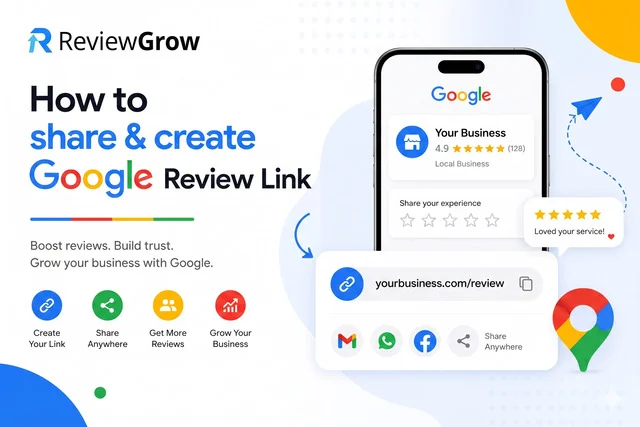
If you run a local business, getting Google reviews consistently is no longer optional. Reviews shape your Google Maps ranking, build customer trust, and directly influence whether someone chooses you over a competitor.
The single biggest barrier to getting more reviews is friction. Most customers are willing to leave a review, but they won't go hunting for your business profile on their own. A direct Google review link removes that friction entirely. One click, and they land straight on the review form, ready to write.
This guide covers everything you need: how to create a Google review link using multiple methods, how to share it across every major channel, how to turn it into a QR code, templates you can copy immediately, and how it all connects to stronger local SEO performance in 2026.
If you are looking for a simplified, automated alternative to finding the shortcut manually in your business dashboard, you can use the ReviewGrow Google review link creator to do it instantly.
What Is a Google Review Link?
A Google review link is a direct URL that sends customers straight to the review submission form on your Google Business Profile. Instead of asking them to search for your business, scroll through results, find your profile, click the Reviews tab, and then figure out how to leave a rating, the link does all of that in one step.
There are two distinct URLs businesses often confuse:
|
URL Type |
What It Does |
|---|---|
|
Google Business Profile URL |
Opens your general business listing page. |
|
Direct Google Review Link |
Opens the review submission form immediately (Recommended). |
Only the second one drives reviews efficiently. Sending someone to your general listing adds unnecessary steps and drops your conversion rate significantly.
Businesses use direct Google review links to collect more authentic reviews, improve visibility in Google Maps and local search, and build the kind of social proof that converts new visitors into paying customers.
Why Google Review Links Matter for Local SEO
Google reviews are one of the most powerful ranking signals in local search. When your business receives reviews consistently, Google interprets it as a signal that your business is active, trusted, and relevant to local searchers.
This has direct impact on:
Google Maps rankings. Businesses with higher review volume and stronger ratings tend to rank higher in the map pack, especially for competitive local searches.
Local pack visibility. The three-business local pack that appears above organic results is heavily influenced by review signals, proximity, and relevance.
"Near me" search results. Voice searches and mobile "near me" queries favor businesses with strong review profiles.
AI Overview citations. Google's AI-powered search summaries increasingly pull from businesses with strong review signals when recommending local services.
Click-through rates. Star ratings appear directly in search results and on Google Maps. A business with 4.8 stars and 200 reviews will almost always outperform a competitor with fewer reviews, even at the same ranking position.
Research consistently shows that consumers trust online reviews as much as personal recommendations. Businesses that make it easy to leave reviews generate them more often, which compounds over time into a significant local SEO advantage.
The simpler the process, the more reviews you get. That is exactly what a direct review link delivers.
How to Create a Google Review Link
There are four reliable methods to create a Google review link. The right one depends on your setup and how technical you want to get.
Method 1: Create a Google Review Link from Google Business Profile
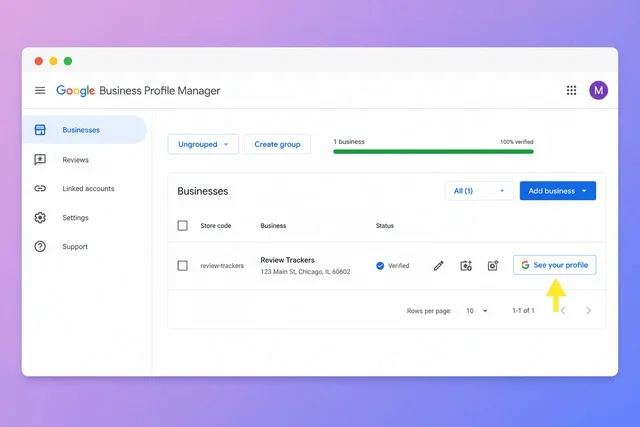
This is the fastest and most recommended method. Google generates the link for you directly.
Step-by-step:
-
Sign in to your Google Business Profile
-
Select the business location you want to generate a link for
-
Look for the "Ask for reviews" or "Get more reviews" option (usually in the Home tab or under the Reviews section)
-
Click it
-
Copy the review link provided
That's the complete process. Google creates a shortened, direct URL tied specifically to your listing. No technical setup, no third-party tools, no guesswork.
This is the best starting point for most business owners because it takes under two minutes and the link is immediately ready to share.
Method 2: Create a Google Review Link Using Google Maps
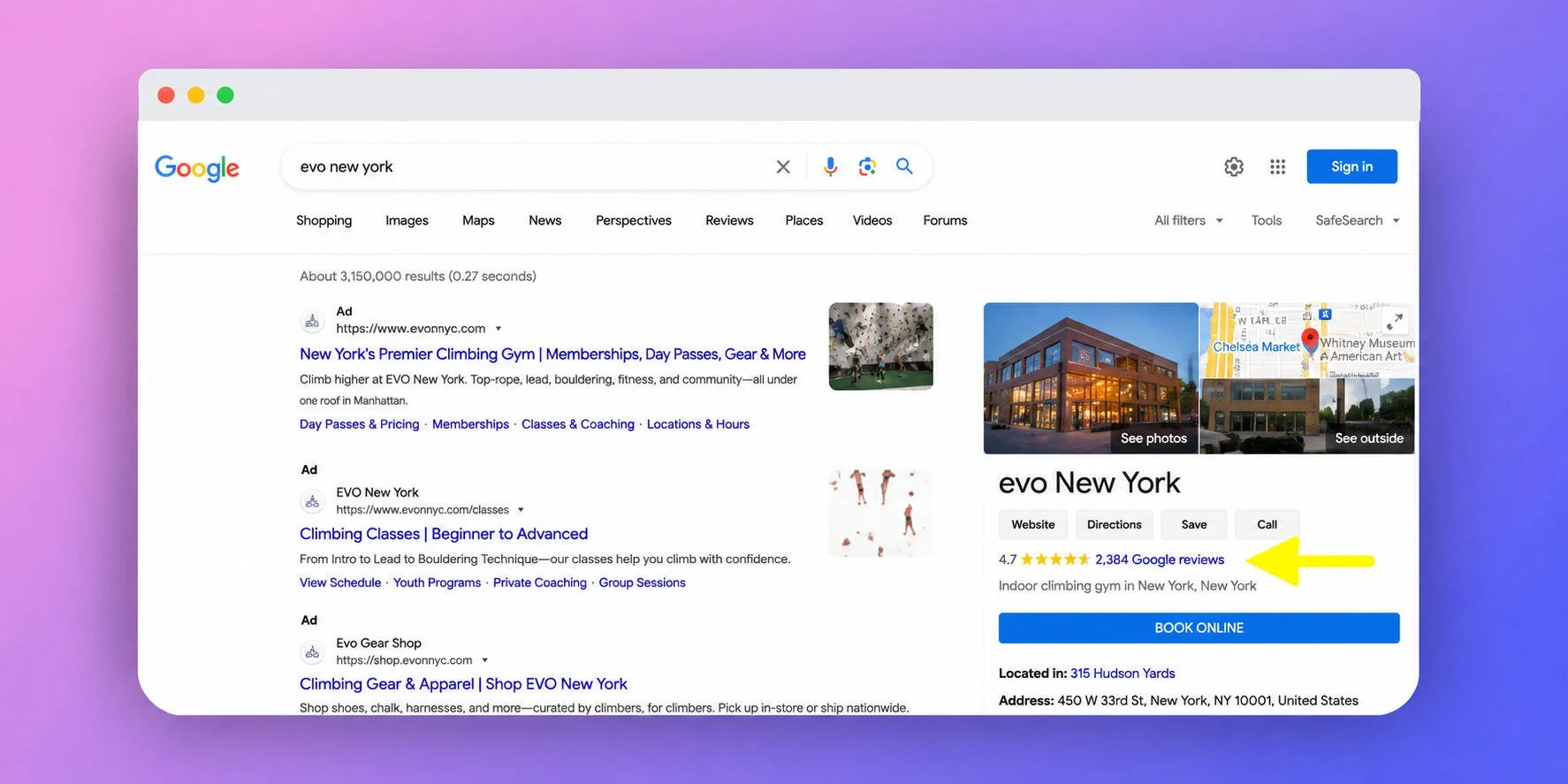
If you prefer working from Google Maps, or if you're managing reviews from a mobile device, this method works well.
Steps:
-
Open Google Maps
-
Search for your business name
-
Open your business profile
-
Navigate to the Reviews section
-
Use the share option if it appears, or copy the URL from the browser address bar when on the reviews section
This method is particularly useful on mobile and for business owners who check their Google Maps presence regularly.
Method 3: Use the Google Place ID Finder Tool
This method is more useful for agencies, multi-location businesses, and anyone who wants to build review links into automated workflows or CRM systems.
What is a Place ID?
Every business on Google is assigned a unique identifier called a Place ID. It is a string of characters that permanently identifies your specific listing.
How to find your Place ID:
-
Go to Google's Place ID Finder tool
-
Type your business name into the search field
-
Select the correct result from the dropdown
-
Your Place ID appears on the map marker
Building the review link:
Once you have your Place ID, your direct review link follows this structure:
https://search.google.com/local/writereview?placeid=YOUR_PLACE_ID
Replace YOUR_PLACE_ID with the actual string from the finder tool.
This approach works well for businesses that want to integrate review requests into email marketing platforms, CRM automations, or custom landing pages. It also makes managing multiple locations much more scalable.
Method 4: Use a Google Review Link Generator
Several reputation management platforms and SEO tools offer built-in Google review link generators. These tools often include additional features like:
-
Shortened, branded URLs
-
QR code generation
-
SMS and email campaign integration
-
Analytics to track how many people clicked your link
-
Multi-location management from a single dashboard
If you are actively managing your online reputation at scale, a dedicated tool can save significant time. ReviewGrow, for example, offers link generation alongside review monitoring and response workflows, making the entire process easier to maintain consistently.
Read more: How to Embed Google Reviews on Your Website (Step-by-Step Guide)
How to Share Your Google Review Link
Creating the link is the easy part. The real growth comes from distributing it strategically and consistently across every customer touchpoint.
Share via Email
Email is one of the highest-converting channels for review requests. The key is timing: ask immediately after a positive customer experience, not days or weeks later.
Best moments to send a review request email:
-
Right after a purchase is delivered or a service is completed
-
Following a successful support resolution
-
After a customer gives you verbal or written positive feedback
-
After a repeat purchase (loyalty signals genuine satisfaction)
Email template:
Subject: Quick Favor: Share Your Experience
Hi [Customer Name],
Thank you for choosing [Business Name]. We hope everything went smoothly.
If you have a moment, we would really appreciate a quick Google review. It only takes a minute and helps other customers find us:
[Insert Review Link]
Thank you so much for your support.
[Your Name] [Business Name]
Keep it short. Customers are more likely to click when the email is simple and low-pressure.
Share via SMS
SMS review requests consistently achieve very high open rates. Most text messages are read within three minutes of delivery, making it one of the fastest ways to reach customers after an interaction.
SMS template:
Hi [Name], thanks for choosing us today. If you have a minute, we would really appreciate a quick Google review: [Insert Link]
Keep it under 160 characters where possible. Avoid sounding overly promotional. A simple, genuine request performs significantly better than a message that feels like marketing copy.
Share via WhatsApp
WhatsApp works especially well for service-based businesses, freelancers, consultants, and local professionals who already communicate with clients through the platform.
WhatsApp template:
Hi [Name], thank you again for your trust in us. If you enjoyed the experience, we would truly appreciate a quick Google review here: [Insert Link]. It means a lot to us.
Personalized messages convert better than bulk sends. If you already have an ongoing conversation with a client, a review request feels natural rather than intrusive.
Add the Link to Your Website
Your website is a permanent channel for collecting reviews. Adding your review link in the right places turns passive visitors into active reviewers.
High-converting placements:
-
Footer (visible across every page)
-
Contact page
-
Thank-you page after a purchase or form submission
-
Appointment or booking confirmation page
-
Exit-intent popups
-
"How are we doing?" widgets
A simple button labeled "Leave a Google Review" with your direct link is all you need. No complex design required.
Use QR Codes
QR codes have become one of the most effective review collection tools for physical businesses. Customers point their smartphone camera at the code and land directly on your review form, with no typing required.
Best places to display your Google review QR code:
-
Business cards
-
Restaurant menus and table cards
-
Receipts and invoices
-
Product packaging
-
Retail checkout counters
-
Service vehicles and van signage
-
Flyers and brochures
-
Event booths and displays
-
Storefront window decals
QR codes bridge your offline customer experience to your online reputation. A customer who just had a great meal, haircut, or service interaction is highly motivated to leave a review in that moment. A QR code makes acting on that motivation instant.
Best Practices to Get More Google Reviews
The mechanics of sharing a link are straightforward. What separates businesses that consistently generate reviews from those that struggle is execution and approach.
Ask at the right moment. Timing is everything. The best time to ask for a review is immediately after a customer expresses satisfaction, whether verbally, through a purchase, or through a support interaction. Waiting too long reduces the chance they will follow through.
Keep the request short and direct. Long explanations make people feel like leaving a review is a big commitment. A single sentence works: "Would you mind leaving us a quick Google review?" That is often enough.
Make the process frictionless. Always use a direct link. Never ask someone to "search for us on Google and leave a review." Every extra step you add reduces your conversion rate.
Engage with every review. Google values engagement, and responding to reviews signals that your business is active and attentive. Responding to negative reviews professionally is especially important because it shows future customers that you take feedback seriously. Consistent responses also encourage more customers to leave reviews.
Use automation carefully. Review request tools and CRM integrations can automate email or SMS follow-ups after a transaction. This works well as long as the messages feel personal and are sent at the right moment. Aggressive mass campaigns tend to generate complaints rather than reviews.
Track your review growth over time. Monitor your review velocity (how many new reviews per week or month), average star rating, and common themes in review text. Consistent growth in reviews correlates strongly with improved local rankings. If growth stalls, revisit your request process.
Read more: How to Get More Google Reviews for Your Business: Proven Ways
Common Problems and Fixes
Even with the right link, businesses run into issues. Here are the most common ones and how to address them.
"Ask for Reviews" button is missing
This usually means your Google Business Profile is not verified, or the profile is incomplete. Google only provides review generation tools to verified business owners. Complete your verification, fill out all profile fields, and try again. If the button is still missing, try accessing your profile on desktop rather than mobile.
Review link is not working
Test your link before distributing it. If you built the link manually using a Place ID, double-check that the Place ID is correct and that the URL structure is exact. If you used a URL shortener, verify the redirect is active. Broken links send customers nowhere and waste the goodwill of someone who was ready to review you.
Customers say they cannot leave a review
The most common cause is that the customer is not signed into a Google account. Google requires users to be signed in to submit reviews. Another possibility is that Google has temporarily restricted reviews on your profile as part of its spam-filtering system. This sometimes happens to new profiles or profiles that received an unusual spike in reviews.
Duplicate business profiles
Duplicate listings split your reviews across multiple profiles, diluting your total count and creating confusion for customers. Use your Google Business Profile dashboard to identify and merge or remove duplicates.
Suspended Google Business Profile
Suspensions happen due to policy violations, inaccurate business information, or suspicious review patterns. Avoid shortcuts. Follow Google's guidelines precisely, keep your business information accurate, and do not participate in review exchange schemes. If suspended, you can appeal through the Business Profile support process.
Google Review Link Templates
Ready-to-use templates for every major channel.
Email review request
Subject: We Would Love Your Feedback
Hi [Customer Name],
Thank you for supporting [Business Name]. Your experience matters to us.
If you have a minute, please leave us a quick Google review here:
[Insert Review Link]
Your feedback helps other customers find us and helps us keep improving.
Thank you!
[Your Name]
SMS review request
Thanks for visiting [Business Name] today. If you have a moment, we would love a quick Google review: [Insert Link]
WhatsApp review request
Hi [Name], thank you again for choosing [Business Name]. If you enjoyed the experience, a quick Google review would mean a lot to us: [Insert Link]
Website button copy
Enjoyed your experience? Leave us a Google Review.
In-person verbal request
"If you have a moment, we would really appreciate it if you left us a quick Google review. I can text you the link right now if that is easier."
Final Take
Creating a Google review link takes a few minutes. The long-term impact on your business can be substantial.
Businesses that build review generation into their customer journey, rather than treating it as an occasional task, consistently see stronger Google Maps rankings, better click-through rates in search results, and higher customer trust. In 2026, with AI Overviews surfacing local business information directly in search results, review signals matter more than ever.
The process does not need to be complicated. Create your direct review link, add it to every channel where your customers interact with you, and make asking for a review a natural part of how you close every transaction.
Start with one method, whether that is adding the link to your email signature, generating a QR code for your counter, or setting up a simple post-purchase SMS. Then expand from there.
The businesses that win at local SEO are not always the ones with the best product. They are often simply the ones who make it easiest for satisfied customers to say so.
Frequently Asked Questions
Can I create a Google review link without a website?
Yes. You only need a verified Google Business Profile. A website is not required to generate or share a review link.
Is a Google review link free?
Yes. Google provides review links at no cost through your Business Profile dashboard.
Can I shorten my Google review URL?
Yes. URL shorteners make links cleaner and easier to share, especially in SMS messages where character count matters. Make sure the shortened URL is working correctly before distributing it.
Can I create a QR code for my Google review link?
Yes. Paste your review link into any QR code generator and download the image. See the QR code section above for more detail.
Why can my customers not leave reviews?
The most common reason is that they are not signed into a Google account. Reviews require a Google sign-in. Other causes include Google's spam filters temporarily restricting reviews on your profile, or the customer attempting to leave a review from a browser that does not support the review form correctly.
How do I share a Google review link on social media?
Paste the link directly into a Facebook post, add it to your Instagram bio, share it in a LinkedIn post, or include it in email newsletters. You can also pin a review request post to the top of your Facebook or LinkedIn page.
Does Google remove fake reviews?
Yes. Google actively monitors for and removes reviews that violate its policies. This includes fake reviews, reviews left by business owners on their own profiles, and reviews generated through incentivization schemes. The consequences of violating these policies can include profile suspension and removal of legitimate reviews caught in the same filter sweep.
How many Google reviews do I need?
There is no fixed target. Consistency matters more than a specific number. Businesses that generate a steady stream of reviews over time generally outperform those that received a large batch at once and then stopped. Aim for a regular cadence rather than a one-time push.