How to Embed Google Reviews on Your Website (Complete Guide 2026)
July 16, 2026
 Rebecca Stone· Online Reputation Consultant
Embedding Google reviews on your website takes five minutes once you know which method actually works. I've set up review displays for dozens of local businesses over the years, and I can tell you the fastest, most reliable ways to do it right now. Google doesn't hand you a simple embed button, so most site owners end up stuck choosing between widgets, plugins, and APIs without knowing which one actually fits their site.
This guide covers every method that works in 2026, what each one costs, and which platform it suits best. No filler, just the exact setup steps you need to get your reviews live today.
Quick Overview of Methods
-
Review Widgets & Plugins: Most accessible options, offering easy setup with both free and paid tiers.
-
Google Places API: Ideal for developers seeking total customization; provides maximum control but requires ongoing maintenance.
-
Free Badge Generators: Best if you need a lightweight trust signal without a full review feed.
Can You Embed Google Reviews on Your Website?
Yes, you can legally display your own Google Business Profile reviews, but you'll usually need a third-party widget or the Google Places API to do it. Google doesn't offer an official "embed all reviews" button the way YouTube lets you embed a video.
In practice, businesses use one of four approaches: a review widget from a dedicated provider, a WordPress plugin, a direct HTML embed, or a custom build on top of the Google Places API.
Each has a different setup time, cost, and maintenance burden. I'll break down all four below so you can pick the one that matches your skill level and budget. If embedding isn't required, simply linking directly to your Google Business Profile is a viable, no-code alternative.
Google Business vs. Google Place: What's the Difference?
These two terms get mixed up constantly, and it's worth clearing up since it affects how your reviews show up. Google Business refers to your overall presence on Google: your business name, address, phone number, hours, photos, and posts, all managed through your Google Business Profile. Google Place refers to a specific physical location tied to your business, and Place reviews are the feedback customers leave about their experience at that particular address.
If you operate multiple locations, this distinction matters a lot. Each location has its own Place ID and its own set of reviews, so a Place ID mix-up (covered in the section below) usually comes down to confusing your overall Business listing with one specific Place.
Effective Methods to Display Google Reviews on Your Website
Method 1: Use a Google Reviews Widget (Recommended)
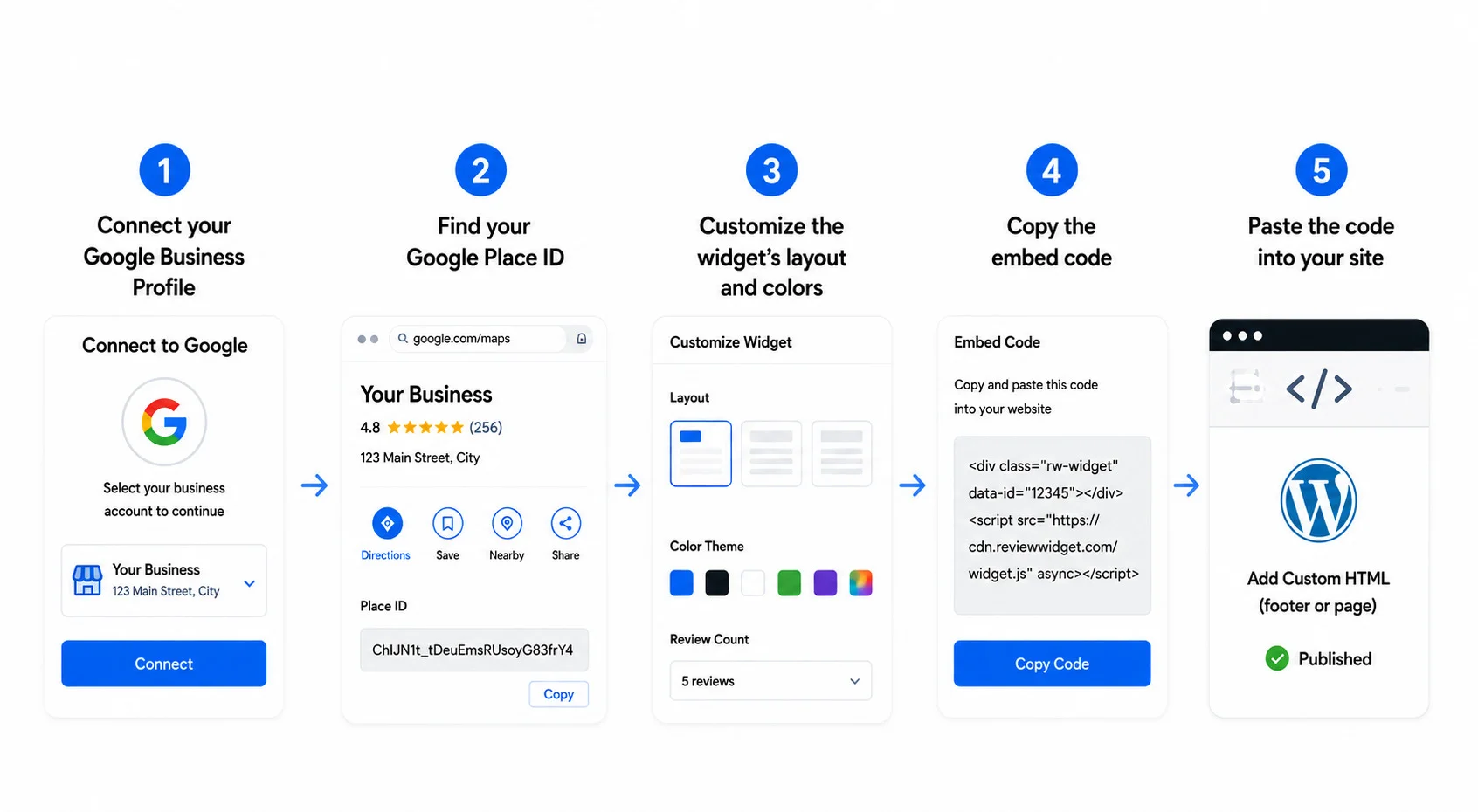
For most business owners, a widget is the easiest path from zero to a working review display. The typical setup looks like this:
• Sign up for a widget provider
• Connect your Google Business Profile
• Find your Google Place ID
• Customize the widget's layout and colors
• Copy the embed code
• Paste the code into your site
Method 2: Using a Free Google Review Badge Generator
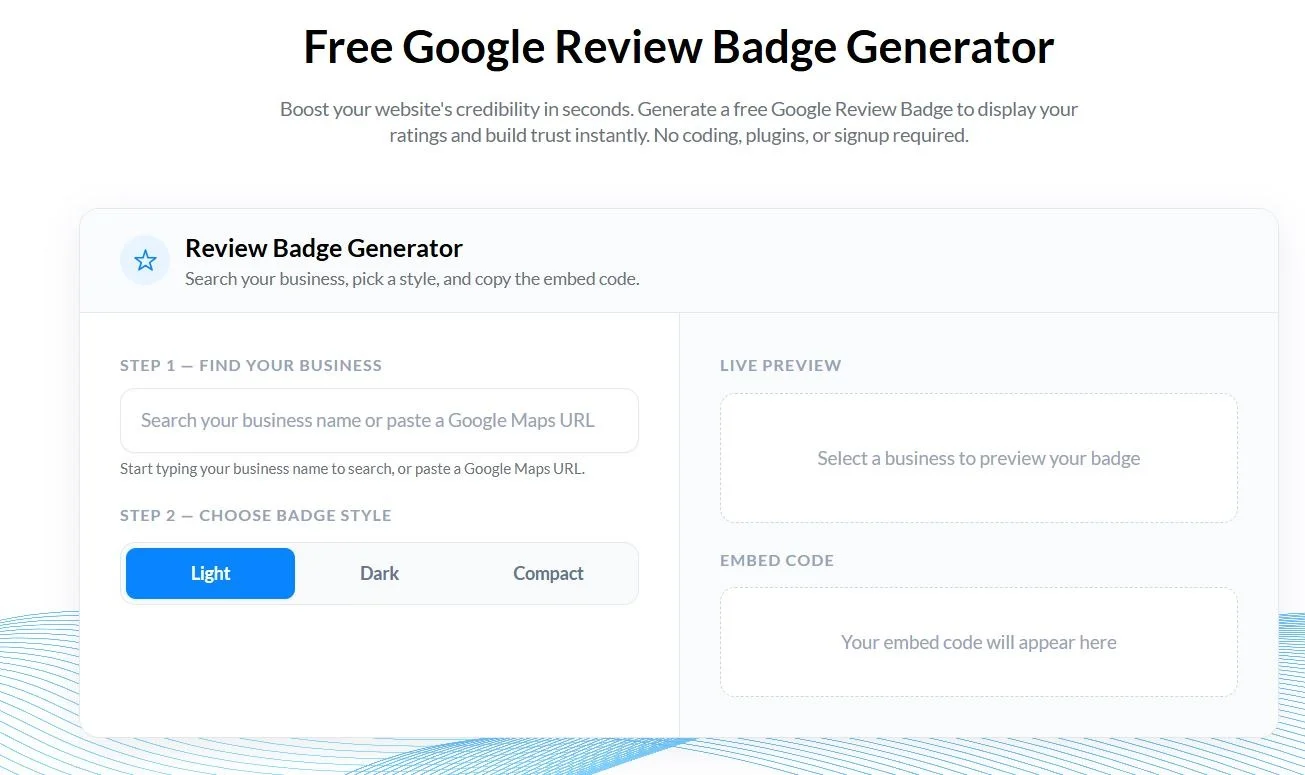
If a full review feed feels like more than you need, a badge is the lighter option. Using the ReviewGrow Google Review Badge Generator skips the widget setup entirely. Follow these steps:
-
Navigate to the ReviewGrow Google Review Badge Generator.
-
Search for your business and select it from the results.
-
Choose your preferred display style (Light, Dark, or Compact).
-
Copy the generated HTML snippet.
-
Paste the code snippet into your website, such as in a footer, sidebar, or specific homepage section.
Method 3: Embed Google Reviews in WordPress
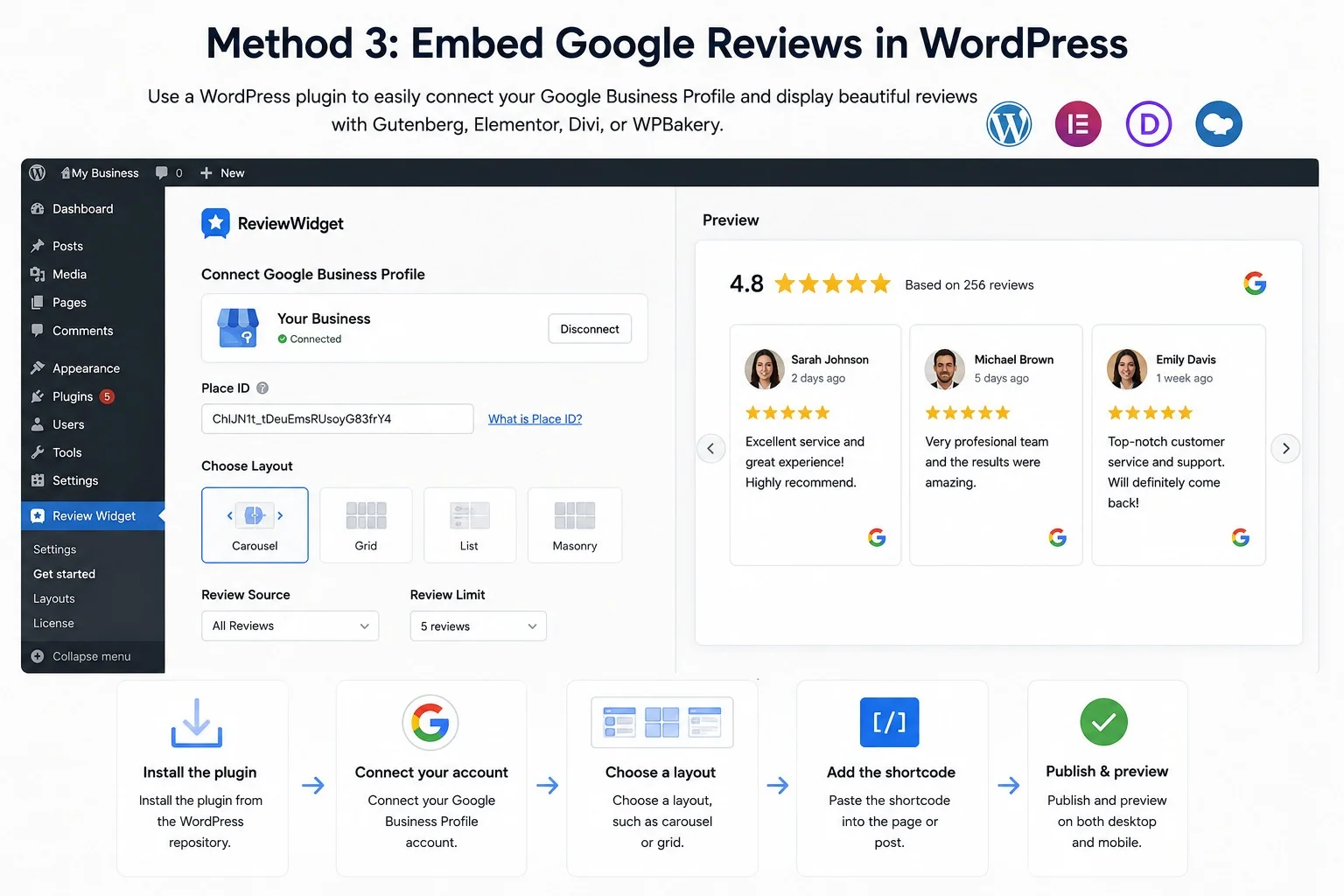
If your site runs on WordPress, a plugin is usually the cleanest route. Most widget providers publish their own plugin, and they work with the builders people already use: Gutenberg blocks, Elementor, Divi, and WPBakery.
The setup steps are almost identical across plugins:
• Install the plugin from the WordPress repository
• Connect your Google Business Profile account
• Choose a layout, such as carousel or grid
• Paste the shortcode into the page or post
• Publish and preview on both desktop and mobile
One thing I always check after installing a review plugin is page speed. Some plugins load extra scripts and stylesheets that slow the page down, which works against you if you care about Core Web Vitals. Test before and after with a speed tool so you know exactly what impact the plugin has.
Read more: How to Share and Create a Google Review Link in 2026 (Step-by-Step Guide)
Method 4: Use Google Places API
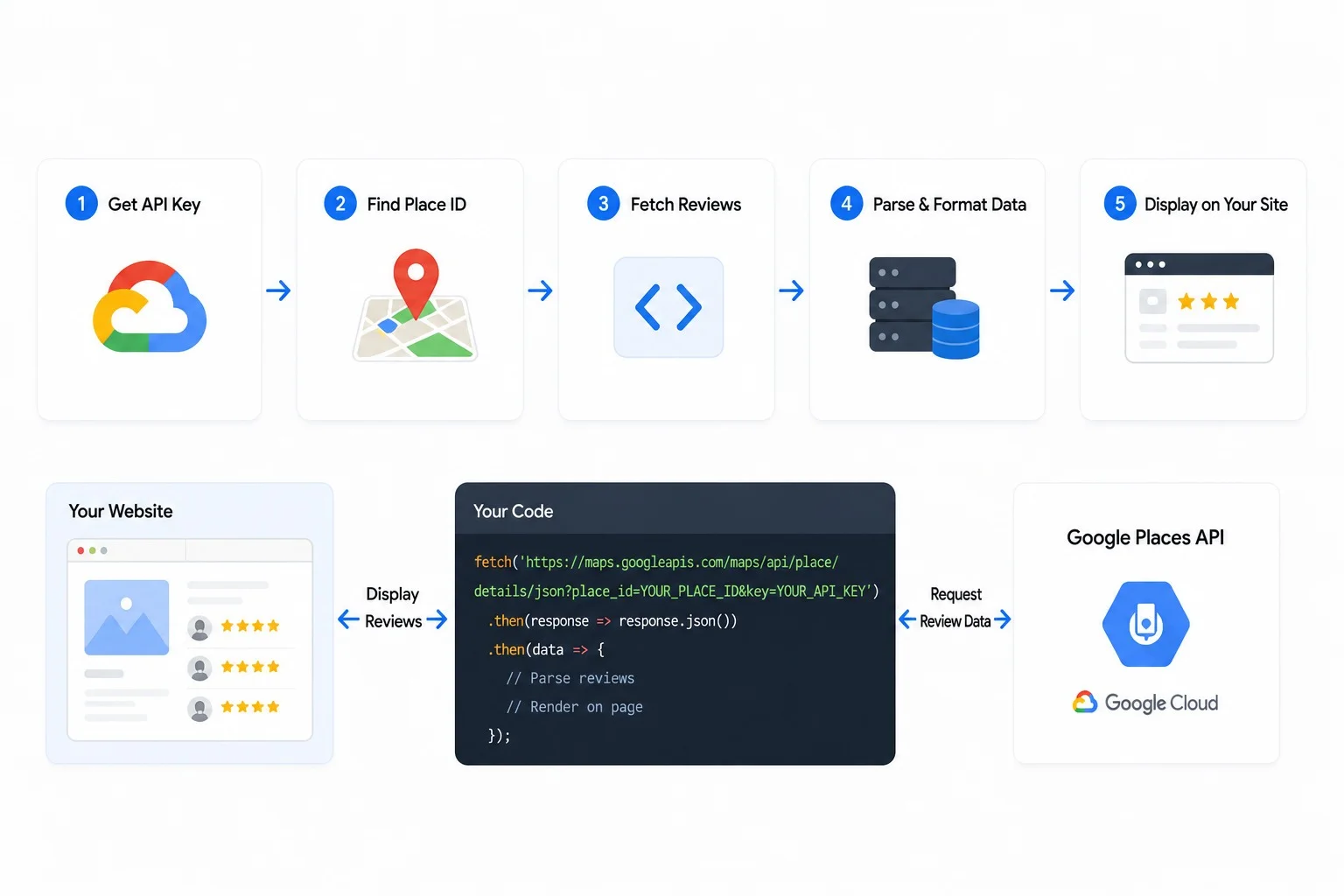
The API route is for developers who want full control over how reviews are fetched and displayed. You'll need a Google API key and your business's Place ID, then you write code to fetch review data and render it however you want on your site.
The upside is total design freedom and no dependency on a third-party widget provider. The downside is real maintenance.
You're responsible for handling API rate limits, formatting the review data yourself, and keeping the integration working when Google updates its API. Google's Places API also has usage-based pricing once you exceed the free monthly quota, so factor that into your decision if you expect meaningful traffic.
I usually recommend this method only when a client has an in-house developer and a specific design requirement that off-the-shelf widgets can't handle. For everyone else, a widget or plugin gets you 90% of the result with a fraction of the effort.
How to Find Your Google Place ID
Every widget and API method above needs your Google Place ID. Here's how to find it:
• Go to Google's Place ID Finder tool
• Search for your business name and address
• Confirm the pin matches your actual business location
• Copy the Place ID shown below the map
• Paste it into your widget or API setup
Double check that you've selected the correct listing if your business has multiple locations or if a similarly named business exists nearby. Pulling the wrong Place ID means you'll display someone else's reviews.
Why Add Google Reviews to Your Website?

I've watched conversion rates shift the moment a client adds visible, recent reviews to a homepage or checkout page. Here's why it works.
Increase trust
Most shoppers read reviews before they buy anything, and they trust reviews from other customers more than they trust your own marketing copy. Showing real, unedited Google reviews signals that you have nothing to hide.
Boost conversions
Positive reviews sitting near a call-to-action reduce hesitation at the exact moment someone is deciding whether to buy, book, or sign up. I typically recommend placing your strongest reviews directly above or beside your primary CTA button.
Improve local credibility
For local businesses, embedded reviews reinforce that you're an active, real operation in the area. This matters even more if your site targets multiple locations, since fresh, location-specific reviews build confidence for each market.
Keep testimonials updated automatically
A widget or API connection pulls in new reviews as they come in, so you're not manually copying and pasting testimonials every few weeks. Set it up once and it stays current on its own.
If you're looking to accelerate your growth, getting more reviews can significantly boost your search visibility and customer trust.
Best Places to Display Google Reviews
Placement matters as much as the widget itself. Based on what consistently performs well across client sites, prioritize these spots:
• Homepage, above the fold or just below your hero section
• Landing pages tied to ad campaigns
• Checkout or booking page
• Pricing page
• Service pages
• Footer
• Sidebar
• About page
• Contact page
• Location pages, if you serve multiple areas
Build a Dedicated "Wall of Love" Page
Beyond scattering reviews across your site, consider a standalone page dedicated entirely to customer feedback. Group reviews by theme, such as customer service, product quality, or overall experience, so visitors can find the feedback most relevant to their concern. Link back to your Google Business Profile from this page so visitors can verify the reviews are real and, ideally, leave one of their own.
Try a Floating Google Review Badge
A badge that stays visible as visitors scroll acts as a quiet, constant trust signal rather than something they see once and forget. Just make sure it's responsive and doesn't cover content or CTAs on mobile, since a floating element that blocks the "buy" button defeats the purpose.
Best Google Review Widget Features
Not all widgets are built the same. When you're comparing providers, run through this checklist:
• Automatic updates as new reviews come in
• Mobile responsive layout
• Carousel and grid display options
• Dark mode support
• Review filtering by star rating
• Star rating display
• Custom colors to match your brand
• Schema markup support for rich snippets
• Lazy loading for performance
• Review moderation controls
• Multi-location support
Google Reviews Widget Examples
Widgets typically come in a handful of layout styles. Pick based on where the widget sits on your page:
• Carousel, good for hero sections and limited vertical space
• Grid, good for a dedicated reviews or testimonials page
• Sidebar, good for blog posts and long-form content
• Popup, good for capturing attention without taking up page real estate
• Single testimonial, good for a focused, high-impact placement near a CTA
• Masonry, good for displaying reviews of varying length cleanly
Does Embedding Google Reviews Help SEO?
This is worth clarifying directly since it's one of the most searched questions on this topic. Embedding reviews does not directly improve your search rankings.
There's no Google ranking factor that rewards a page simply because it has a review widget on it.
That said, there are real indirect benefits. Reviews tend to keep visitors on the page longer, which supports engagement signals.
They increase conversions, which matters for your bottom line even if it doesn't move rankings directly.
And if you implement review schema markup correctly, you can become eligible for rich snippets in search results, which do improve click-through rate. Just don't expect a widget alone to boost your position in Google's results.
Read more: Do Google Reviews Help SEO? Local Ranking Factors Explained
Common Problems When Embedding Google Reviews
I run into the same handful of issues repeatedly when troubleshooting review widgets for clients:
• Widget not loading, often caused by a script conflict or ad blocker
• Google account disconnected, which requires reauthorizing the connection
• Reviews not updating, usually a caching issue on your site or CDN
• Mixed content warnings, when the widget loads over HTTP on an HTTPS site
• JavaScript conflicts with other plugins or theme scripts
• Caching plugins serving a stale version of the widget
• API quota exceeded, if you're on the Places API route without proper limits set
Most of these resolve by clearing your cache, reconnecting your Google account, or checking your browser console for the specific script error.
Best Practices & Common Pitfalls
Avoiding these common pitfalls will ensure your review display remains effective and professional:
-
Using an outdated widget that's no longer compatible with your site builder
-
Linking to the wrong Google Business listing, especially if you manage multiple locations
-
Placing reviews somewhere visitors never scroll to, instead of near your CTA
-
Cramming a page with so many reviews that none of them stand out
Reviewing your implementation against these points can prevent common display issues that frustrate visitors.
• Show your most recent reviews, not just your highest rated ones
• Display your average rating prominently near the widget
• Never selectively hide or filter out negative reviews in a misleading way
• Keep the widget lightweight so it doesn't slow down your page
• Optimize page speed by lazy loading the widget below the fold
• Place reviews near your calls-to-action, not buried at the bottom of the page
• Use a responsive design that works on mobile
• Let the widget refresh automatically instead of manually updating it
On the compliance side, stick to Google's terms of service for how you display reviews, and avoid presenting them in a way that misrepresents your actual rating or selectively hides criticism.
If you're also managing responses to the reviews you're displaying, the AI Review Response Generator is worth a look, and the Google Review Calculator can help you figure out how many new reviews you need to hit a target average rating.
Accessibility Considerations
A review widget should be usable by everyone visiting your site, not just people using a mouse. Check that your widget supports keyboard navigation so visitors can tab through reviews without a mouse, maintains sufficient color contrast between text and background, and uses readable font sizes rather than tiny decorative text. Most reputable widget providers handle this by default, but it's worth testing manually rather than assuming.
Final Take
Widgets are the easiest way to get Google reviews on your site, the Places API suits developers who want full control, and WordPress plugins simplify the whole process if that's your platform. Reviews build trust and move people closer to a purchase decision, so don't leave them off your site. Pick a responsive solution that updates automatically, matches your platform, and fits your budget, and you'll have real social proof working for you on every page that matters.
Frequently Asked Questions
Can I embed Google reviews for free?
Yes. Most widget providers and WordPress plugins offer a free plan that displays a limited number of reviews, usually with the provider's branding attached.
Does Google offer an official review widget?
No. Google doesn't provide a native embed button for all your business reviews, which is why third-party widgets, plugins, and the Places API exist to fill that gap.
Can I embed reviews without plugins?
Yes. You can paste a widget provider's HTML embed code directly into your site, or build a custom display using the Google Places API, without installing any plugin.
Is Google Places API free?
Google gives you a monthly free usage quota for the Places API, but you'll be billed for usage beyond that limit, so check current API pricing before building on it.
Can I embed reviews in WordPress?
Yes. Most review widget providers offer a dedicated WordPress plugin that works with Gutenberg, Elementor, Divi, and WPBakery, and installation typically takes a few minutes.
Can I display reviews on Shopify?
Yes. Most widget providers support Shopify through an app or an HTML embed block you can add to your theme's product or homepage sections.
Can I embed reviews on Wix?
Yes. Wix supports HTML embed elements, so you can paste your widget's embed code directly into a page using Wix's embed code block.
Can I show only 5-star reviews?
Most widgets let you filter by star rating, but Google's own guidelines discourage selectively hiding negative reviews in a way that misrepresents your actual rating, so use filtering carefully.
How often do widgets update?
Most widgets refresh automatically, typically pulling new reviews within a few hours to a day of them being posted, depending on the provider's sync schedule.
Can I customize the design?
Yes. Paid plans usually offer color customization, layout options like carousel or grid, font choices, and dark mode, while free plans often limit customization.
Will embedding reviews slow down my website?
It can if the widget isn't optimized. Look for a provider that supports lazy loading and keep an eye on your page speed scores after installing any widget.
Do I need coding skills to embed Google reviews?
No, not for widgets or plugins. Both are designed for non-developers. Coding skills only become necessary if you choose to build a custom solution with the Google Places API.
Rebecca Stone
Online Reputation ConsultantRebecca Stone is an Online Reputation Consultant who's all about helping people build their brand and win over customers. She loves sharing what she knows, so she writes for the ReviewGrow blog, giving readers the scoop on how to get ahead.