How to Edit Google Reviews (Step-by-Step Guide for Desktop & Mobile)
April 21, 2026
 Chris Patterson· Local SEO Specialist
Have you recently left a Google review for a business and now find yourself wanting to change it? If you're wondering how to edit a Google review, you're not alone. Maybe your opinion has shifted after a return visit, the owner resolved your concern, or you simply noticed a typo you'd like to fix.
Whatever the reason, editing a Google review is refreshingly simple. You don't need special permissions, technical skills, or more than a minute of your time. So if you want to refine your feedback for that favorite local spot (or change your mind about one that let you down), keep reading. Below, we'll walk you through exactly how to edit your Google reviews on desktop, iPhone, and Android, plus what to do if the edit option isn't working.
Why Edit the Google Reviews You Write for Businesses?
Editing your Google reviews matters more than it might seem at first. The feedback you leave behind shapes how potential customers perceive a business, influences their buying decisions, and affects the company's overall rating on Google Maps and Search.
Here's why you should stay on top of the reviews you share:
-
Correct inaccurate or outdated information. If you've made a grammar mistake, misspelled a product name, or included wrong details, fixing it keeps your feedback reliable.
-
Reflect the business's current reputation. Your review directly shapes public perception, so keeping it accurate ensures your words remain genuine and truthful.
-
Update your rating after service changes. If the business has improved (or worsened) since your visit, adjusting your original review gives future customers a fair, up-to-date picture.
-
Refine your tone. If you were too harsh, too vague, or didn't give enough credit, editing lets you add helpful context.
-
Reflect a change of opinion. A second visit or new experience can easily change how you feel about a brand.
-
Acknowledge a resolved issue. Many businesses reach out to unhappy customers to explain their side, offer a refund, or make things right. If they follow through, updating your review reflects that.
Can You Edit a Google Review After Posting?
Yes, and it's easier than most people think. As long as you're signed into the same Google account you used to post the original review, you can update the text, adjust the star rating, swap out photos, or remove it altogether. Changes go live instantly on both Google Maps and Google Search.
A few ground rules to keep in mind:
-
You can only edit reviews you personally wrote.
-
You must be logged into the same Google account used to post the review.
-
You cannot edit someone else's review, only flag it.
-
Businesses cannot edit customer reviews, only respond to them.
Who Can Edit or Delete Review Entries on Google?
Google keeps review ownership simple: the person who wrote the review is the only one who can change or remove it. This rule protects the authenticity of feedback and prevents businesses from manipulating their ratings.
Here's a clear breakdown of who can do what:
The Original Reviewer (You)
If you wrote the review, you have full control over it. You can:
-
Edit the written content at any time.
-
Change the star rating (up or down).
-
Add, replace, or remove photos.
-
Delete the review entirely.
All you need is access to the same Google account you used when posting it.
Business Owners
Business owners cannot edit or delete customer reviews, no matter how unfair they may seem. What they can do is:
-
Respond publicly through their Google Business Profile.
-
Flag reviews that violate Google's review policies (spam, hate speech, conflict of interest, off-topic content, etc.).
-
Request removal through Google support if a review breaks the rules.
Even then, the final decision rests with Google, not the business.
Other Google Users
Regular users cannot edit or delete someone else's review. However, if you come across one that seems fake, abusive, or misleading, you can report it by tapping the three dots next to the review and selecting Report review. Google will then assess whether it violates the guidelines.
Google Itself
Google reserves the right to remove any review that breaks its content policies, even without notifying the reviewer. Common reasons include:
-
Spam or fake content.
-
Offensive or harassing language.
-
Conflict of interest (reviewing your own business or a competitor).
-
Promotional or irrelevant content.
If your review suddenly disappears, it's worth checking whether it aligned with Google's guidelines before assuming it's a technical glitch.
Quick Summary Table
|
Who |
Can Edit? |
Can Delete? |
Can Respond? |
|
Review author |
✅ Yes |
✅ Yes |
❌ No |
|
Business owner |
❌ No |
❌ No |
✅ Yes |
|
Other users |
❌ No |
❌ No (only report) |
❌ No |
|
|
✅ Can remove |
✅ Yes |
❌ No |
In short: your review is yours to manage. Businesses can reply, users can report, and Google can moderate, but no one else can rewrite your words.
For businesses looking to maintain a strong online presence, investing in professional reputation management is the most effective way to respond to feedback, resolve customer concerns, and encourage positive reviews over time.
How to Edit a Google Review on Desktop
Editing on a computer is the fastest method, especially if you're updating longer reviews.
Steps to edit a Google review on desktop:
-
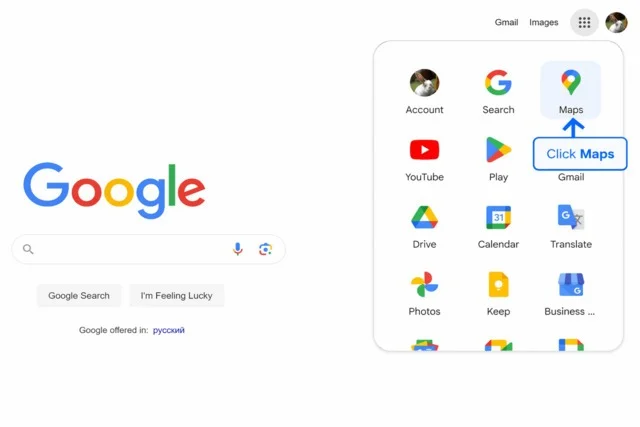
Open Google Maps in your browser.
-
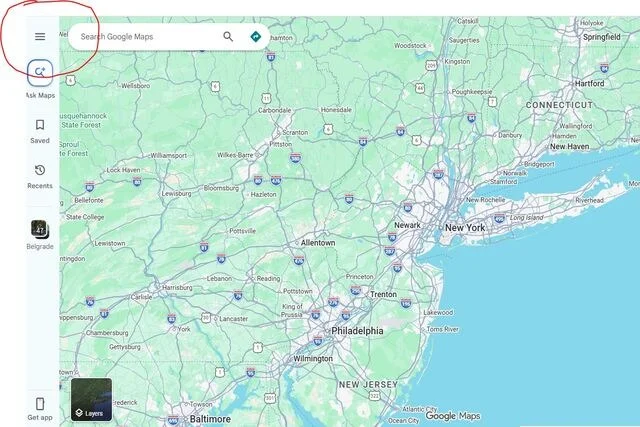
Click the menu icon (three horizontal lines) in the top-left corner.
-
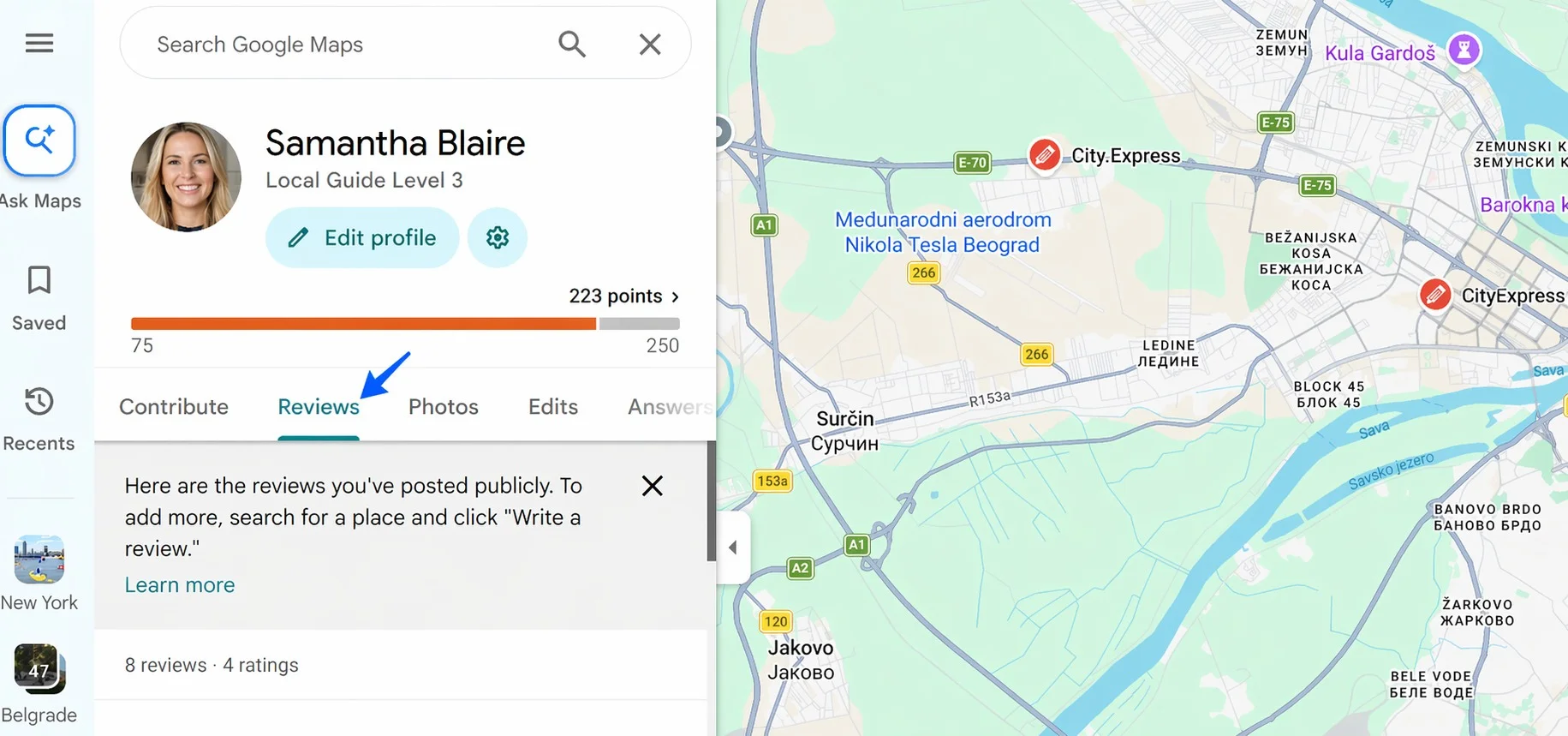
Select Review Tab
-
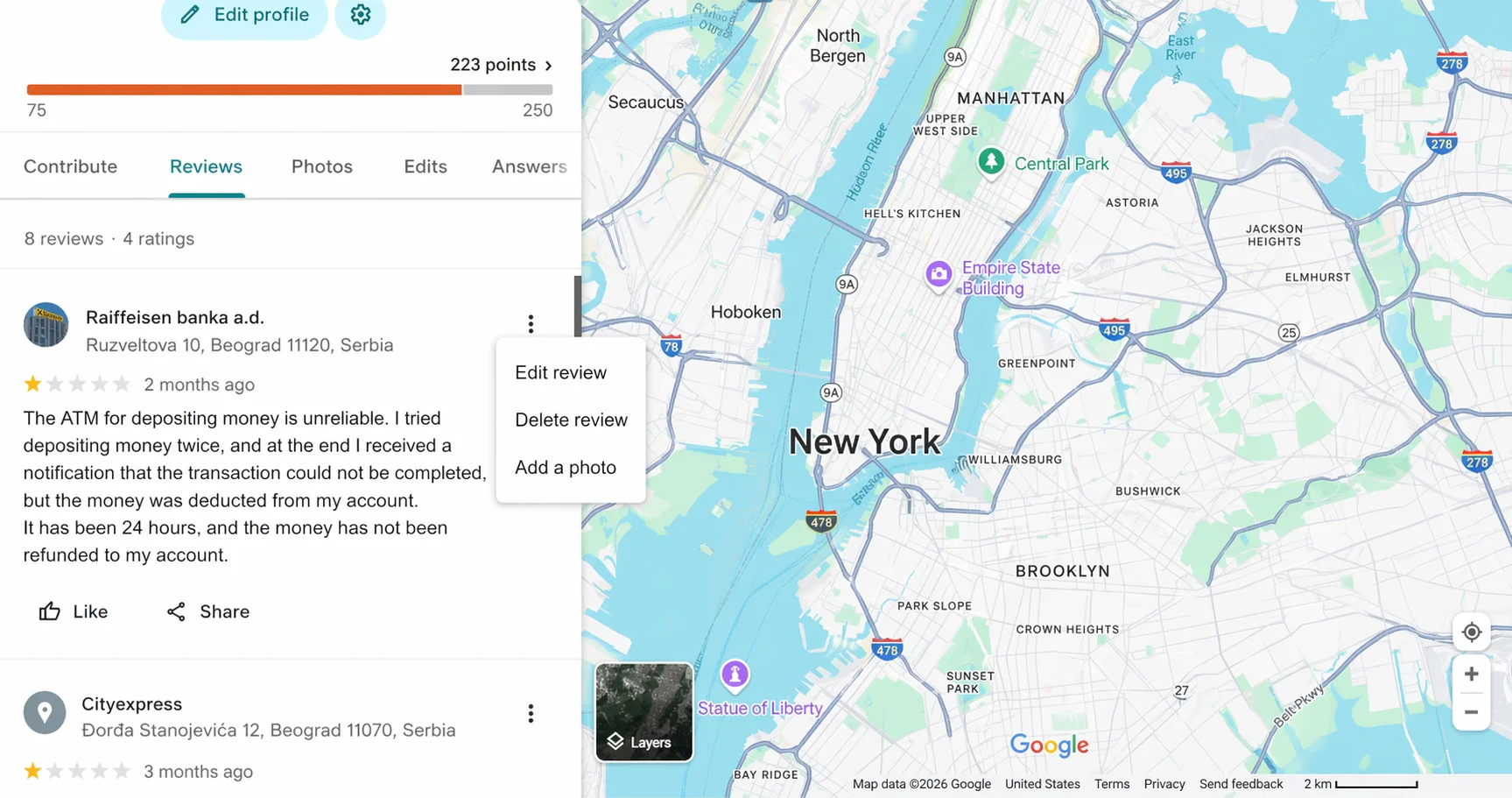
Find the review you want to change and click the three dots next to it.
-
Choose Edit review.
-
Update the star rating, text, or photos, then click Post.
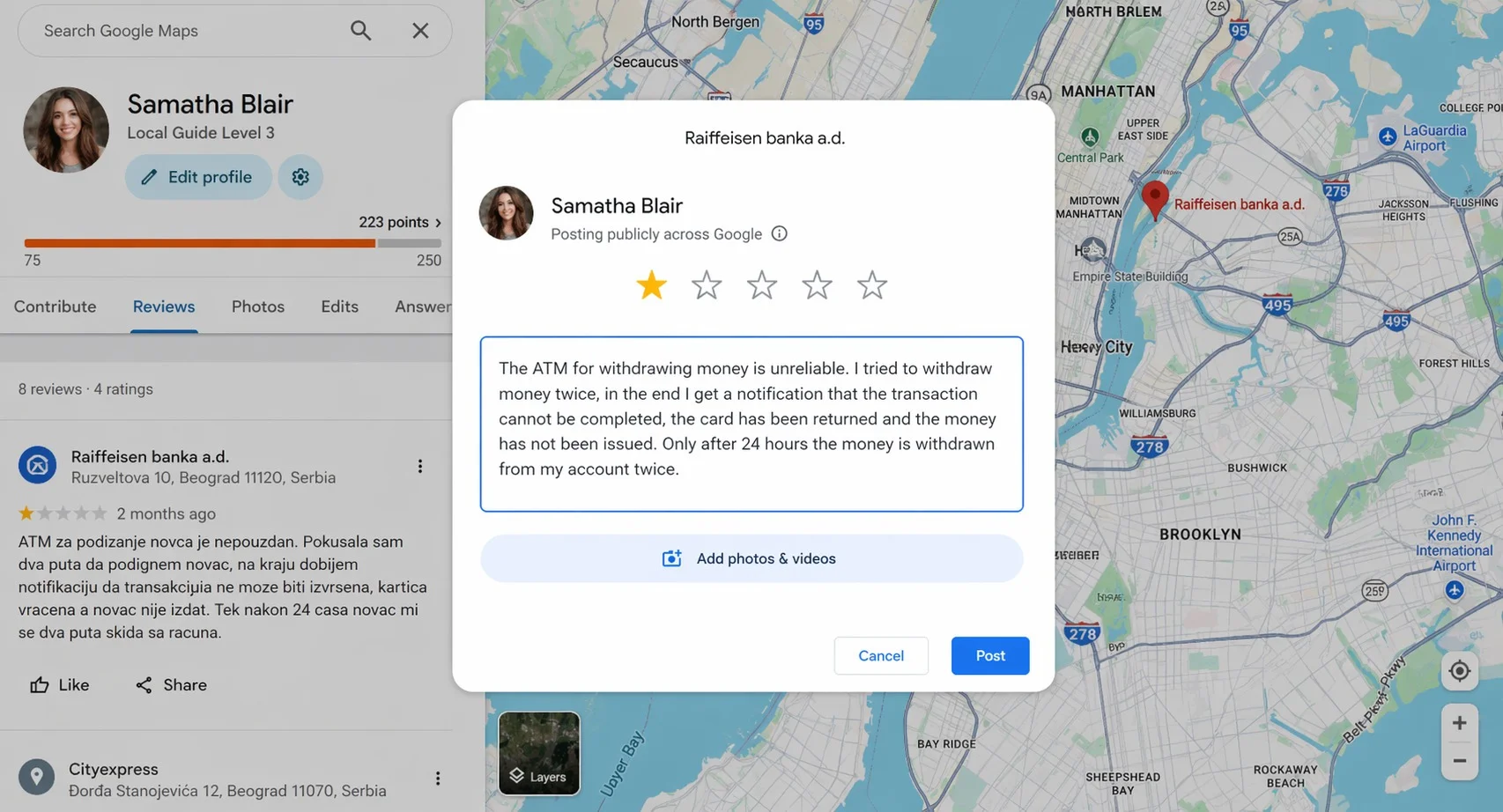
Your updated review replaces the old one immediately.
How to Edit a Google Review on Phone (iPhone & Android)
The mobile process is nearly identical across both operating systems, with only small design differences.
How to Edit a Google Review on iPhone
-
Open the Google Maps app on your iPhone.
-
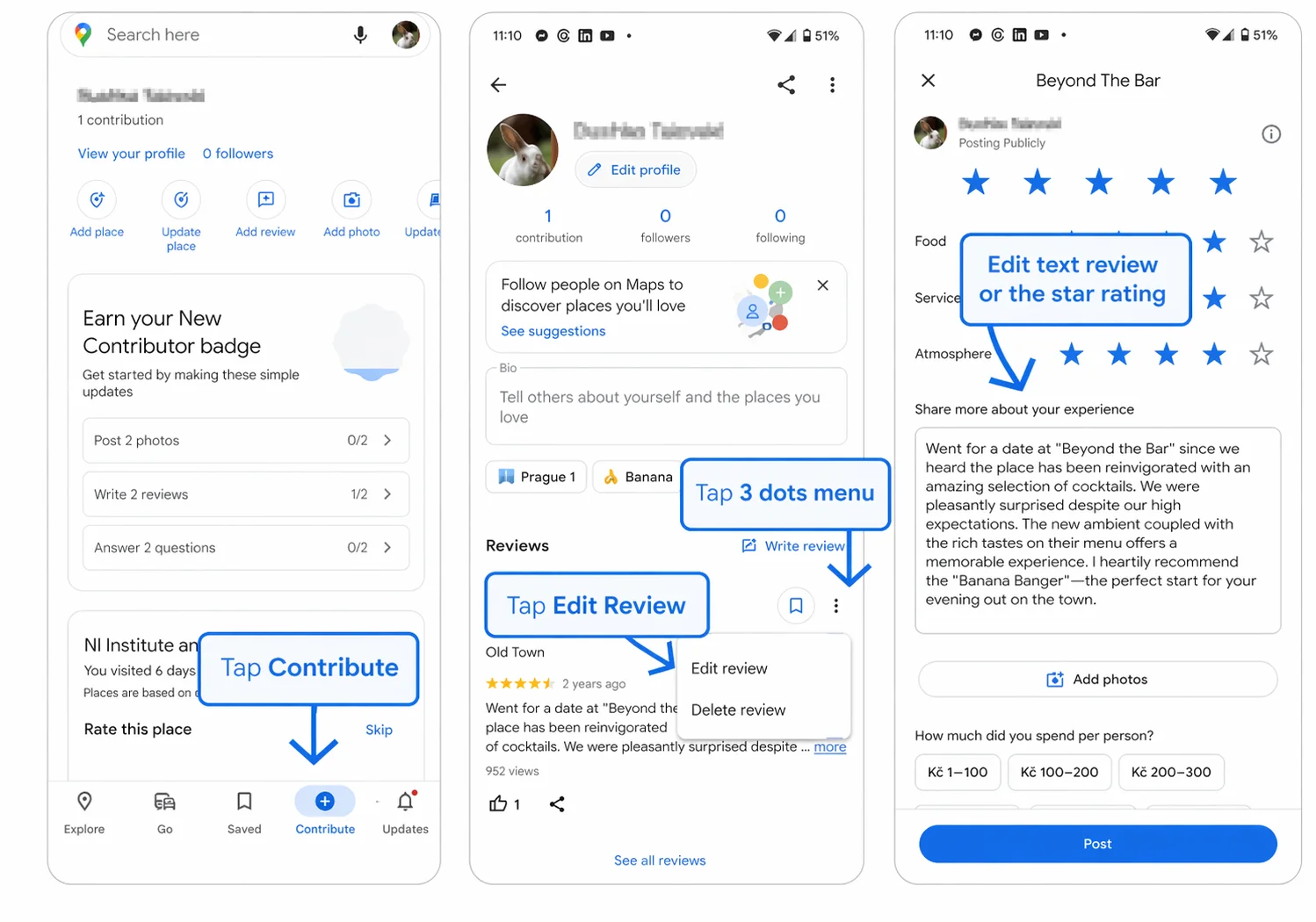
Tap Contribute at the bottom of the screen.
-
Tap View your profile.
-
Scroll to Reviews and find the one you want to edit.
-
Tap the three dots next to the review.
-
Select Edit review.
-
Make your changes and tap Post.
How to Edit a Google Review on Android
-
Open the Google Maps app on your Android device.
-
Tap Contribute in the bottom navigation.
-
Tap View your profile.
-
Scroll down to your list of Reviews.
-
Tap the three dots next to the review.
-
Choose Edit review.
-
Update your content and hit Post.
If you don't have the Google Maps app installed, you can also edit reviews by visiting maps.google.com in your mobile browser.
Desktop vs Mobile: Quick Comparison
|
Feature |
Desktop |
Mobile (iOS/Android) |
|
Access point |
Google Maps website |
Google Maps app |
|
Menu location |
Top-left hamburger icon |
"Contribute" tab |
|
Path to reviews |
Your contributions → Reviews |
Profile → Reviews |
|
Photo editing |
Easier (drag & drop) |
Quick upload from camera roll |
|
Best for |
Longer edits, detailed reviews |
Quick fixes, adding photos |
How to Change Your Star Rating on Google Reviews
Changing your star rating follows the same process as editing the review text. On the Edit review screen, simply tap or click the stars to update your rating from 1 to 5, then hit Post.
This small change carries more weight than people realize. Star ratings directly impact a business's overall score, so keeping yours current helps other customers make accurate decisions and gives the business fair feedback.
Read more: How to Remove Fake Negative Google Reviews (Different Methods)
How to Delete a Google Review Instead of Editing It
Sometimes deleting is the better move, especially when the experience is no longer relevant or the business has changed ownership.
Steps to delete a Google review:
-
Open Google Maps (app or desktop).
-
Go to Your contributions → Reviews.
-
Tap the three dots next to the review.
-
Select Delete review.
-
Confirm the deletion.
When to delete instead of edit:
-
The business has permanently closed.
-
You posted the review by mistake.
-
The review is outdated and no longer reflects reality.
-
You want a clean slate before posting fresh feedback.
Read more: Why Are My Google Reviews Not Showing Up? (Causes + Fixes)
Why Can't I Edit My Google Review?
If the Edit review option is missing or nothing happens when you tap it, one of these issues is usually the cause:
-
You're signed into the wrong Google account. Switch to the account used when the review was originally posted.
-
The review was removed by Google. If it violated policy (spam, conflict of interest, off-topic), it may no longer exist.
-
Sync issues with Google Maps. Close the app fully and reopen it, or clear your browser cache.
-
Outdated app version. Update Google Maps from the App Store or Play Store.
-
The business listing was removed. If the business no longer exists on Google, the review may also disappear.
A quick fix that works for most users: sign out, sign back in, and check Your contributions again.
Tips for Updating a Google Review the Right Way
Editing a review is a chance to make your feedback more helpful, not less. A few best practices:
-
Add context. If you're updating after a return visit, mention what changed and why.
-
Be specific. Name the staff member, dish, product, or situation.
-
Refresh your photos. New visuals make updated reviews stand out.
-
Stay honest. Don't wipe a negative review just because the business asked, unless they genuinely resolved the issue.
-
Mention dates. A note like "Updated after my second visit in March 2026" adds credibility.
Read more: How to Search Google Reviews by Name (Step-by-Step)
Final Take
Editing a Google review takes less than a minute, whether you're on a laptop, iPhone, or Android phone. The key is using the same Google account, heading to Your contributions, and tapping Edit review. If the option isn't showing, it's almost always an account or sync issue rather than a permanent block.
Keeping your reviews accurate helps other customers, gives businesses fair feedback, and makes you a more trusted voice in the Google community.
Frequently Asked Questions
Can I edit a Google review after posting?
Yes. Open Google Maps, go to Your contributions, select Reviews, and tap the three dots next to the review you want to change.
How long does it take for an edited Google review to update?
Edited reviews usually appear instantly on Google Maps and Search. In rare cases, caching can cause a delay of a few minutes.
Can businesses edit customer reviews?
No. Businesses cannot edit or alter reviews left by customers. They can only respond publicly or flag reviews that violate Google's policies.
Why can’t businesses edit review entries on Google?
Google prevents businesses from editing or deleting customer reviews to keep the system trustworthy and unbiased. Allowing edits would undermine the authenticity of reviews and mislead users.
Can I edit someone else's Google review?
No. You can only edit reviews posted from your own Google account. If you believe a review is fake or inappropriate, you can flag it for Google to investigate.
Why is my edited Google review not showing?
Refresh the page, sign out and back in, or confirm you edited from the correct Google account. If the review recently violated policy, Google may have removed it during the update.
Can I change just the star rating without editing the text?
Yes. On the edit screen, simply click a different star rating and post. Your written review stays the same.
Is there a limit to how many times I can edit a review?
No. Google does not limit the number of times you can edit a single review.