How to Search Google Reviews by Name (Step-by-Step)
March 2, 2026
 Rebecca Stone· Online Reputation Consultant
If you are wondering how to search Google reviews by name, here are the basic steps: open the business profile in Google Maps, click the Reviews tab, and use the search icon (magnifying glass) to type the reviewer’s name. On the desktop, you can also press Ctrl+F (Windows) or Cmd+F (Mac) to quickly locate a specific Google review on the page. And that’s the short answer.
Now let’s go deeper. Because if you’re here, you’re probably trying to find one specific review and it’s not showing up easily. Maybe it’s a complaint from a customer. Maybe it’s a fake review. Maybe it’s your own feedback that seems to have vanished. Whatever the case, here’s the complete, no-fluff guide to search Google reviews by reviewer name the smart way.
Method 1: Use the Built-In Google Maps Review Search (Best Method)
This is the cleanest way to filter Google reviews by name.
On Desktop
-
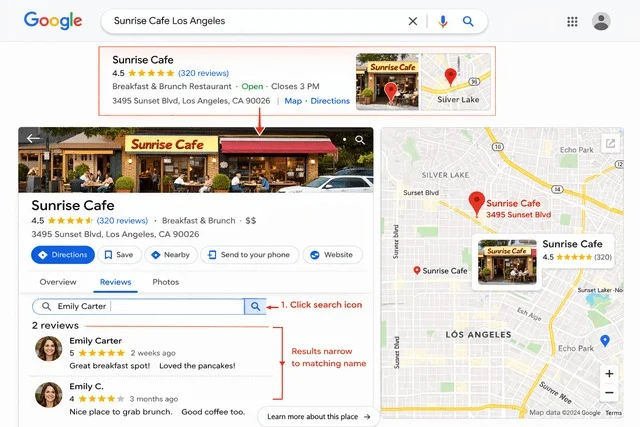
Go to Google and search for the business.
-
Click the map result to open the listing in Google Maps.
-
Click the Reviews tab.
-
Tap the magnifying glass icon inside the review panel.
-
Type the reviewer’s name exactly as it appears.
If the name matches, Google will instantly narrow the results.
This works best when you need to search business reviews by reviewers inside one listing.
On Mobile (Google Maps App)
-
Open the Google Maps app.
-
Search for the business.
-
Tap Reviews.
-
Tap the search icon.
-
Enter the name.
It’s fast and works well if the reviewer's name is unique.
Method 2: Use Your Browser’s Find Tool (Manual Backup)
If the review search icon doesn’t return results, use this manual method to search Google reviews:
-
Open the business listing on desktop.
-
Click Reviews.
-
Scroll to load as many reviews as possible.
-
Press:
-
Ctrl + F (Windows)
-
Cmd + F (Mac)
-
Enter the reviewer’s name.
Your browser will highlight matches.
This is especially helpful when trying to locate a specific Google review among hundreds.
Method 3: Use Google Search Operators (Advanced Trick)
Sometimes the review isn’t easy to spot inside Maps.
Try searching directly in Google:
"Reviewer Name" "Business Name" Google review
Or a stronger operator:
site:google.com "Business Name" "Reviewer Name".
Quotation marks force exact matches and sometimes reveal indexed fragments.
This is useful when a Google review is not showing up in the normal interface.
Can You Search All Google Reviews by a Person’s Name?
Short answer: no.
There is no global Google review search tool that lets you see every review written by one person across all businesses.
Google restricts this for privacy reasons.
You can only:
-
Search within a specific business listing
-
Click a reviewer’s public profile (if visible)
-
View your own reviews
If you’re wondering how to see all reviews written by someone, it’s only possible if their profile is public - not through a centralized database.
How to Find Your Own Google Reviews
If you’re trying to find Google review by person’s name and that person is you:
-
Open Google Maps.
-
Click your profile picture.
-
Select Your Contributions.
-
Tap Reviews.
You’ll see every review tied to your account.
If your review is missing, it may have been filtered.
Why Can’t I Find a Google Review?
If you’re thinking, “Why can’t I find a Google review?” - here are the most common reasons:
1. The Review Was Deleted
The user removed it.
2. Google Filtered It
Spam, policy violations, suspicious activity, or automated moderation can hide reviews.
3. The Account Was Suspended
If the reviewer’s account is restricted, their reviews may disappear.
4. You’re Searching the Wrong Name
Even a small variation matters.
There is no official deleted Google review search system - once permanently removed, it cannot be recovered publicly.
Example - Finding a Review That Mentions “Anna” (Case Study)
Let’s make this practical.
Scenario:
You’re a restaurant manager. You remember a review from last month mentioning a “server named Anna.” It wasn’t terrible, but it mentioned slow service. Now you want to find it and respond properly.
Here’s how you’d handle it.
Step 1: Start with the Fast Manual Search
Open the restaurant’s listing in Google Maps.
Click Reviews → press Ctrl+F (Windows) or Cmd+F (Mac) → type:
Anna
If it appears:
-
Check the full review
-
Note the date
-
Click “Reply” and respond publicly
This is the quickest way to locate a specific Google review when you remember a keyword.
Step 2: If It Doesn’t Show Up, Try a Google Search Operator
Sometimes reviews don’t load fully or aren’t visible immediately.
Go to Google and search:
site:google.com/maps "Anna" "Restaurant Name"
If Google indexed the review, you may see a preview snippet that confirms it exists.
This method works surprisingly well when the Google Maps review search doesn’t return results.
Step 3: Use a Review Monitoring Tool (If You Manage Many Locations)
If you manage multiple listings or track reviews professionally, a reputation management platform can:
-
Search inside historical reviews
-
Filter by keyword
-
Show reviewer name and date
-
Export the review for documentation
In this case, the tool returns:
“Anna was attentive but the wait was long.”
Now you have:
-
The reviewer’s name
-
The full context
-
The date
You can log it internally and respond confidently.
Business Owner Perspective: Google Business Profile
If you manage reviews through Google Business Profile, you can:
-
Sort by newest
-
Filter unanswered reviews
-
Flag inappropriate content
-
Reply directly
However, there is still no full Google My Business review filter by name inside the dashboard.
For businesses handling multiple listings, manual searching isn't scalable. To go beyond just monitoring and start strengthening your brand's digital presence, you should consider a more proactive approach to review acquisition.
How to Monitor Google Reviews Automatically
If you regularly track online reviews, consider:
-
Review monitoring tools
-
Reputation management software
-
Customer feedback tracking systems
You can also use Google Alerts to monitor mentions of your business name, though it’s not a dedicated Google Maps review search tool.
For agencies running a local SEO reviews strategy, automation saves time and helps catch fake Google reviews quickly.
Privacy & Ethical Considerations
When you search Google reviews by name, use the information responsibly.
Reviews are public, but:
-
Don’t harass reviewers
-
Don’t scrape personal data
-
Don’t use it for unsolicited marketing
The goal should be better customer service and smarter review moderation - not confrontation.
Final Verdict
Searching Google reviews by name is possible - just not in the way most people expect.
Google doesn’t offer a global “search every review by this person” feature. You can only search within individual business listings or access a public reviewer profile if it’s available. That limitation exists for privacy and platform protection reasons.
For occasional users, this process takes seconds. For business owners managing reputation at scale, pairing manual search with monitoring tools makes it far more efficient.
Once you understand the boundaries of how Google structures review data, the process stops feeling complicated - and becomes completely manageable.
Can you search Google reviews by name?
Yes, but the functionality is localized to individual business listings. Instead of a site-wide search, you must navigate to the specific business profile on Google Maps. Once there, the "Search reviews" feature allows you to filter the existing comments for a specific name or keyword.
Can you search all Google reviews by a specific person?
No. To protect user privacy, Google does not offer a public "reverse lookup" tool to see a stranger’s entire review history across the web. You are limited to viewing a person's public profile (if they've enabled it) by clicking their avatar on a specific review they wrote.
Why can’t I find a Google review even when searching the name?
If a manual search or "Ctrl+F" fails, the review likely isn't live. This happens if the user deleted the post, if Google’s automated spam filters "shadowbanned" the content, or if there is a slight spelling mismatch between the account name and your search query.
How do I find my own Google reviews?
The fastest way is through the "Your Contributions" tab in the Google Maps menu. This provides a private, centralized feed of every rating and comment you have ever posted, which can be edited or deleted at any time.
Frequently Asked Questions
Can you search Google reviews by name?
Yes, but the functionality is localized to individual business listings. Instead of a site-wide search, you must navigate to the specific business profile on Google Maps. Once there, the "Search reviews" feature allows you to filter the existing comments for a specific name or keyword.
Can you search all Google reviews by a specific person?
No. To protect user privacy, Google does not offer a public "reverse lookup" tool to see a stranger’s entire review history across the web. You are limited to viewing a person's public profile (if they've enabled it) by clicking their avatar on a specific review they wrote.
Why can’t I find a Google review even when searching the name?
If a manual search or "Ctrl+F" fails, the review likely isn't live. This happens if the user deleted the post, if Google’s automated spam filters "shadowbanned" the content, or if there is a slight spelling mismatch between the account name and your search query.
How do I find my own Google reviews?
The fastest way is through the "Your Contributions" tab in the Google Maps menu. This provides a private, centralized feed of every rating and comment you have ever posted, which can be edited or deleted at any time.
Rebecca Stone
Online Reputation ConsultantRebecca Stone is an Online Reputation Consultant who's all about helping people build their brand and win over customers. She loves sharing what she knows, so she writes for the ReviewGrow blog, giving readers the scoop on how to get ahead.